
What are Docker Containers?
Docker containers provide a consistent environment throughout the whole Software Development Life Cycle SDLC. Docker is a tool designed to create, deploy and run applications by using containers. It allows a developer package an application with all the libraries and dependencies it needs. It ensures your application work seamlessly in any environment; be it development environment, test or production.
Before you start reading about Docker you need to have basic understanding of the differences between Virtualization and Containerization.
What is the difference b/w Virtualization and Containerization?
To run a virtual machine on your host OS we need a Hypervisor (a virtualization software that allocates resources from the Host machine to the virtual machines ex: VMware, Virtual Box). The virtual machines can have their own operating system for example, we can have a CentOS vm on a host machine running Windows. That means you have a linux kernel on your Virtual Machine. This consumes more resources from the Host, VM’s are very heavy, take time to start, If you have multiple VM’s on the Host beyond the limit of the host resources your machines become slow.
Note : Your host hardware should support virtualization technology to take advantage of virtualization.
Like Virtualization, Containerization also needs a software to create containers on the host machine. This software is called container engine/docker engine. Each container has applications, libraries and binaries. You don’t have to install operating system in a container i.e they do-not have their own OS. Containers share the OS of the host hence, they are light weight and consume less resources of the Host.
Containers can be built once and can be run anywhere, configure once and run anywhere such as a development VM, QA server, customer data center, public cloud, prod server and on a local machine. Developers worry what is inside the containers (code and data) and Operation team worries what is outside the container such as logging, remote access, monitoring, network config.
Docker in a Nut Shell
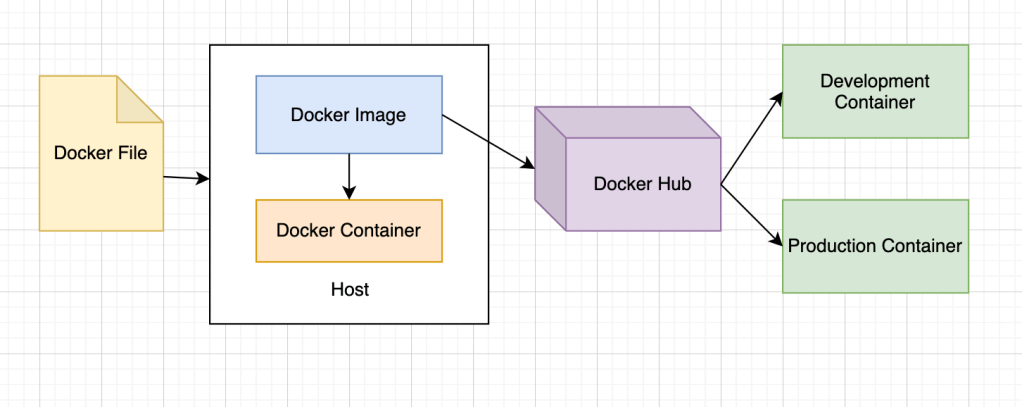
Docker File: A DockerFile is a simple file that allows you to specify the container specific configurations and settings in a simple YAML format
Docker image: When you build a docker file you get an image which is a static file. Image is something like a .ova file. Docker images are read only templates used to create containers.
Docker Container: Is the running instance of an image. When you execute the image or run the image it is nothing but a container. Every container has an ip address, name, id and resource limits.
Docker Hub: Is a public docker registry where you push/store images in a docker hub. From the Docker hub you can pull the image and can run a container. “hub.docker.com” – Is a collection of repositories where you can find numerous images. A repository is a collection of similar images. Images are identified by their tag names.
For Installing Docker Follow link – https://docs.docker.com/get-docker/
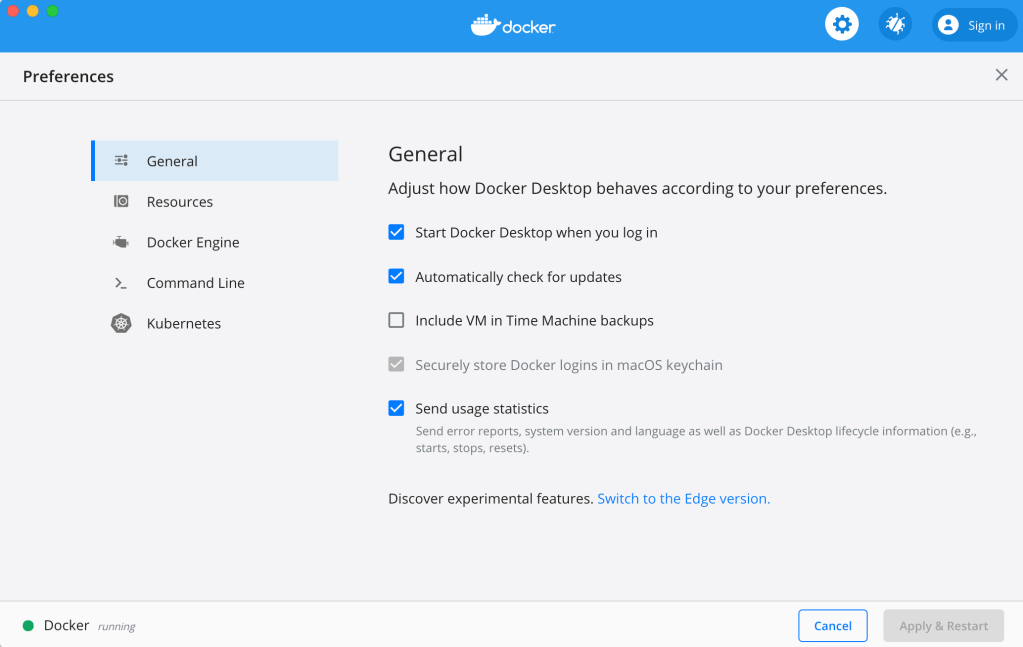
Once you have your Docker Desktop installed. Make sure your Docker is running.
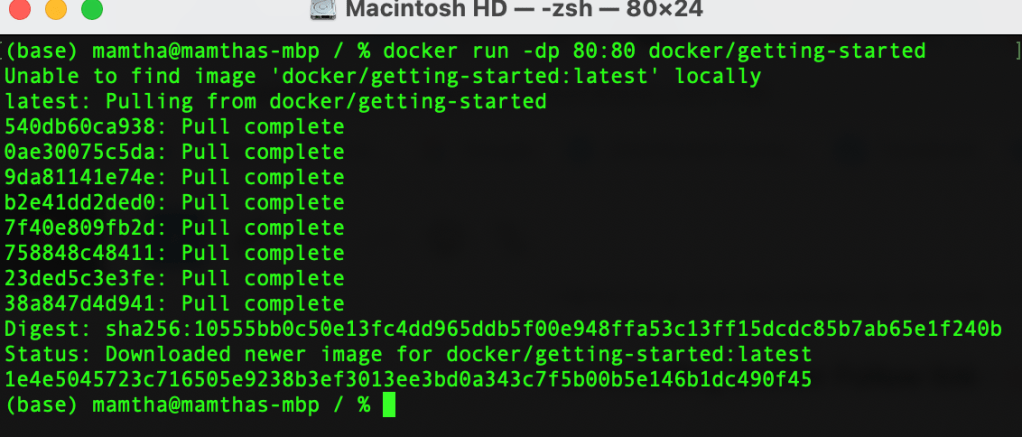
Now, open your command line and type the following command in your terminal
docker run -dp 80:80 docker/getting-started
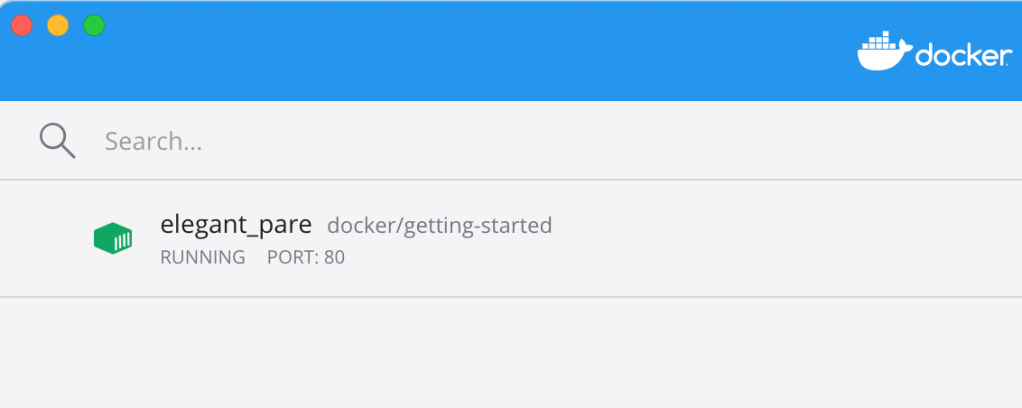
Now you will see a container named elegant_pare running in your Docker Desktop.
Let’s dig in deeper by creating our own customized MySQL docker image from a base image:
- We will be pulling a MySQL Database Image from the DockerHub to our local machine
- Run the container locally and create some tables and insert some dummy data into it.
- Build a customized Docker Image with all the data in it and tag it with a name
- Push the customized image to our repository in DockerHub
Pulling the MySQL Image
Search for mysql on the docker hub and pull it using docker pull mysql
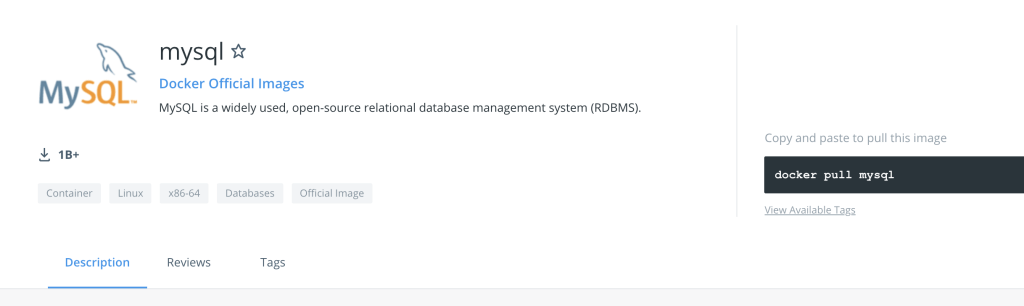
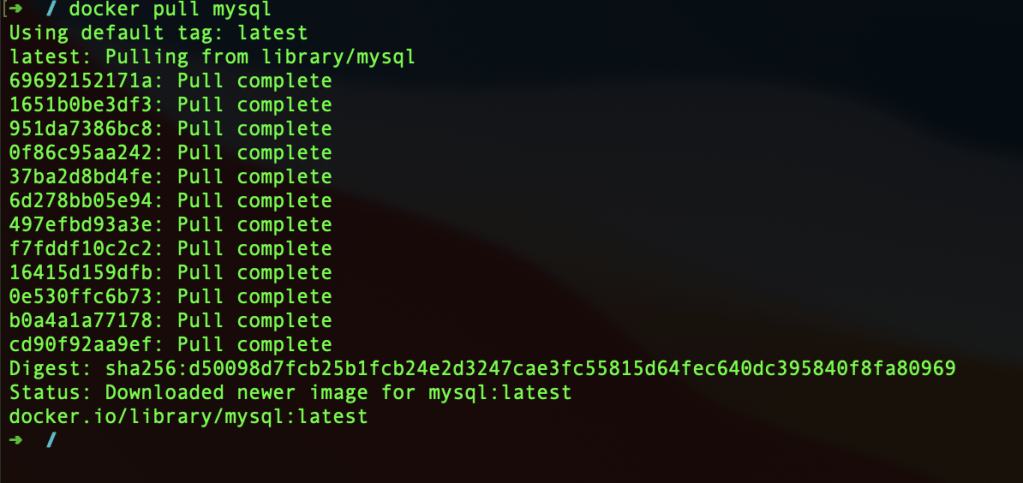
Now that we have the image ready, we will demonstrate a MySQL example with few Docker commands / functionality. This example is to show how can we execute MySQL commands on the docker MySQL image when we run the container i.e., you don’t have to enter into the container to execute your queries.
First, we will write few Database commands and store them in a directory. Second, we will write a Docker file which will use our MySQL image and run these db commands automatically during startup. Think of docker file as a startup script.
Let us create a directory to store our .sql commands. I have created a ‘my-sql’ -> ‘my-sql-scripts’ directory in the home directory.
~ $ mkdir my-sql
~ $ cd my-sql
~/my-sql $ mkdir my-sql-scripts
~/my-sql $ cd my-sql-scripts
~/my-sql/my-sql-scripts
Now, we will write our .sql scripts to the ‘my-sql-scripts’ directory. Let us create a table first -> to do so create a file called ‘create-table.sql’ using the vi editor.

In the vi editor paste in the below script to create a table called restaurants and save the file.
CREATE TABLE restaurants  (
name varchar(25),
cuisine  varchar(25),
location varchar(15),
email  varchar(50)
);
Similarly, we will add a record to the restaurants table in another file called ‘insert-into.sql’ in the same directory ‘my-sql-scripts’ using the vi editor and save the file.
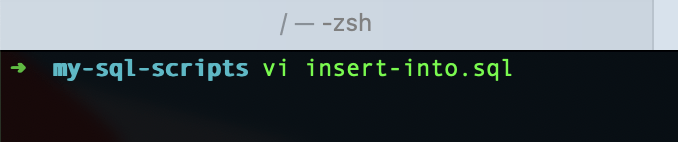
INSERT INTO restaurants (name, cuisine , location, email)
VALUES ('DLorenzos', 'Italian', 'NJ', 'Dlorenzos@gmail.com');
When you do a ls in ‘my-sql-scripts’ you should find the two above created files.

Now that we have our scripts ready. We will create our own customized docker image from the base image we downloaded in the previous steps. To do so, we have to create a docker file. As discussed docker file is a fundamental unit / text file with docker instructions. In the docker file we will provide what base image we are using and what are we adding more to it.
In our example,
- We will use the base MySQL image
- Copy our ‘my-sql-scripts’ to the base image to a directory docker-entrypoint-initdb.d/ (doing so, all the scripts in the directory will automatically execute during container startup)
Let’s create a docker file in the ‘my-sql' directory and add the two above instructions. Do a ‘vi dockerfile’ in my-sql directory and paste the below code.
# Derived from official mysql image (our base image)

FROM mysql

# Add a database

ENV MYSQL_DATABASE food

# Add the content of the my-sql-scripts/ directory to your image
# All scripts in docker-entrypoint-initdb.d/ are automatically
# executed during container startup

COPY ./my-sql-scripts/ /docker-entrypoint-initdb.d/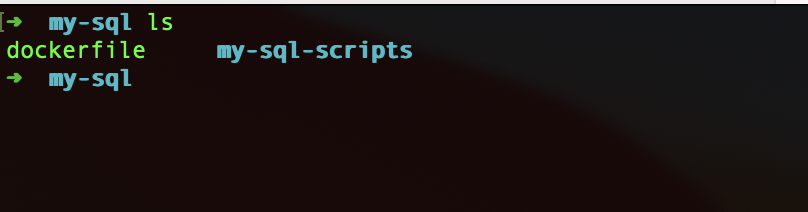
Now, we will build an image (customized image with a database, table and data) from the docker file. To do so, stay in the my-sql directory (as the docker file is in the my-sql directory) and do a
docker build -t my-sql .
docker build command builds an image from the docker file.
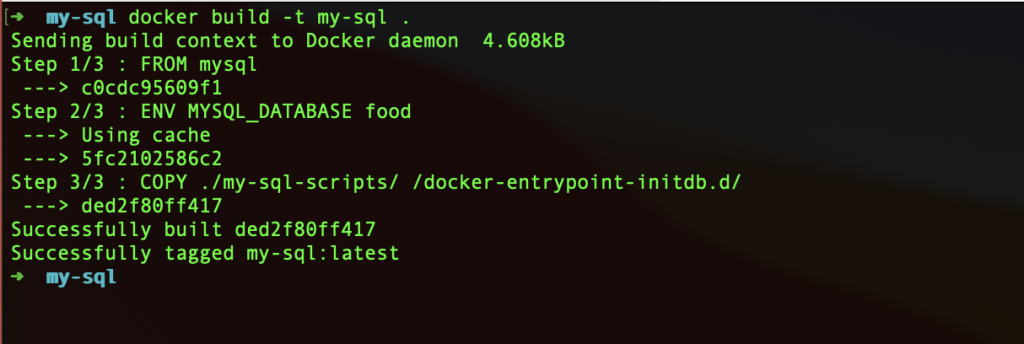
The image is successfully built. To confirm lets do ‘docker images‘

We see from above that our my-sql customized image has been created.
Now, it’s time to run the container.

To confirm do a docker ps -a for checking if the container is running on port 3306.

Now let’s enter into the MySQL container. We will do so by using the below command
docker exec -it my-sql bash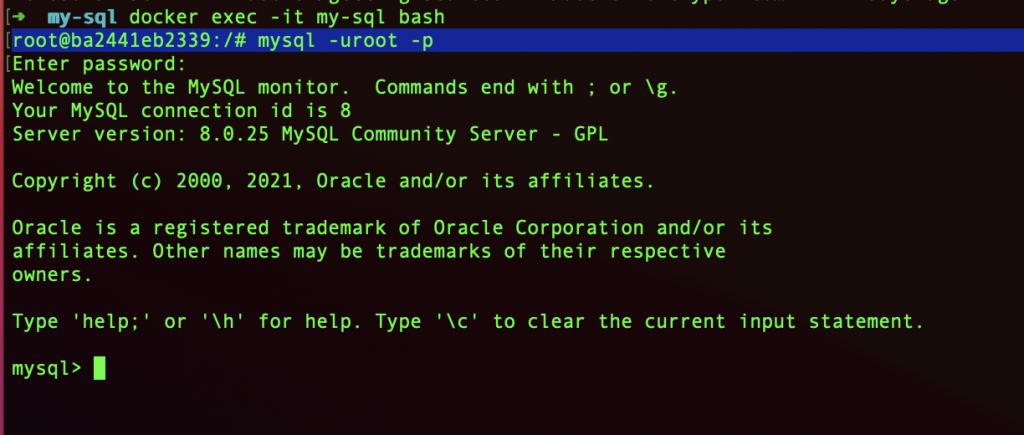
Note: Type in the password: supersecret
Now, let’s check if our database food->restaurants (table) -> and a record is created.
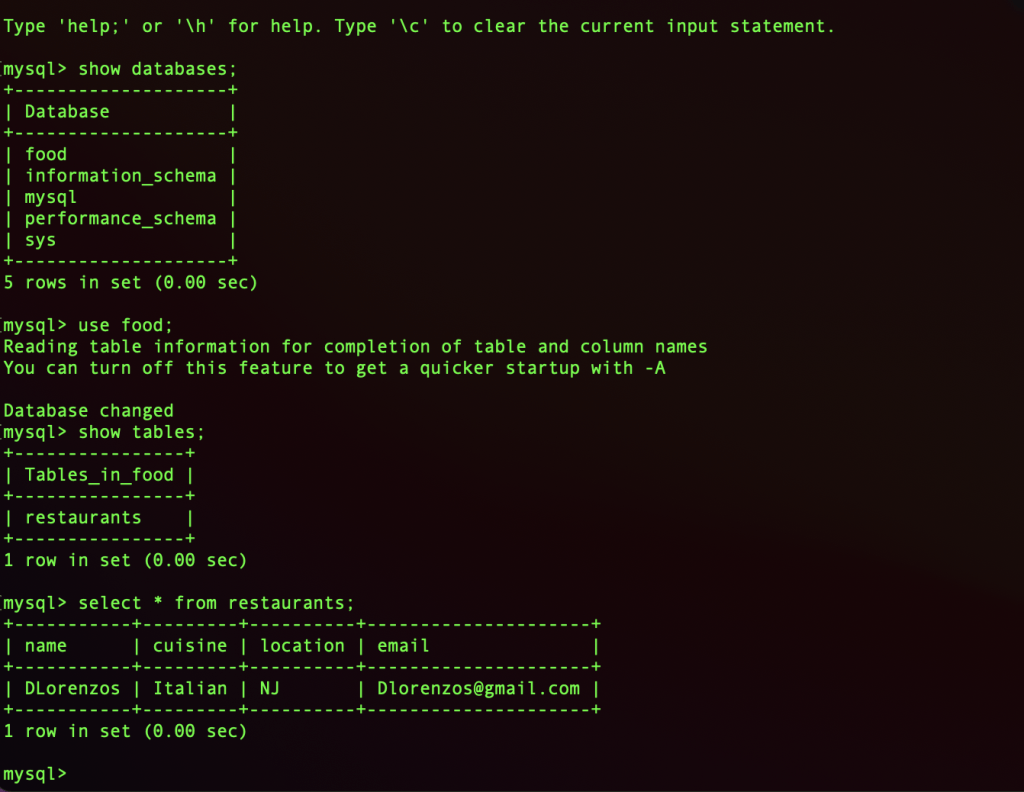
Now that our customized image is ready. We will now push it Docker repository and make it available to public. To do so first we need to create an account in Docker Hub. Click this link to create an account https://hub.docker.com/
I have created a repository called “myname/my-sql2”. Feel free to give your own name.
The first step in the push process is to tag the image with the name of the repository and then push it to the repo.
docker tag <image id> myname/my-sql2:tagname
docker push myname/my-sql2:tagname
Note: Make sure that the repository name and the image name is the same.
Once you hit the two commands you will see that the image is pushed and ready to be pulled. Check the same in your docker hub dashboard. You should see the image pushed in the repository you created.
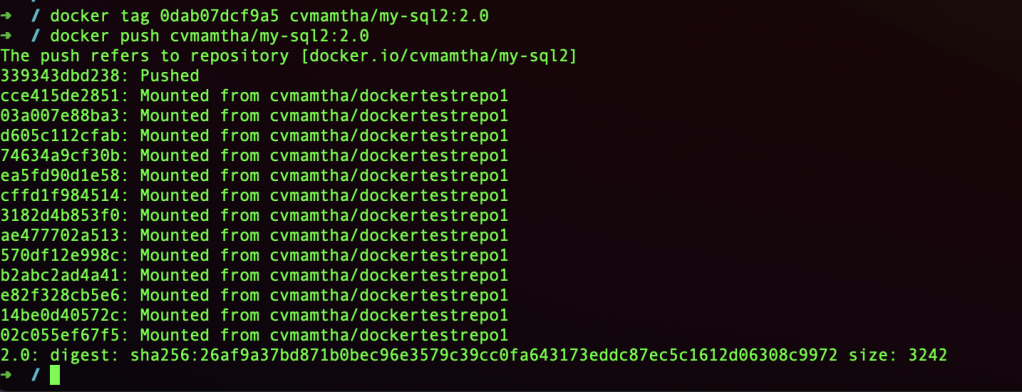
It works! We have our customized MySQL database Docker image! This is a great solution for local development between multiple developers. By sharing the Docker image, every developer can use the database by just starting a container from the image.
 passionfeeds.net